
Tambien hay una version en castellano de este post, click aca.
Welcome to this post, today we’ll talk about some functions to work with strings.
mid
This function allows to extract segments from a string. Let’s watch its syntax:
mid(string, start, length)The first argument can be a literal text or a variable. start is the position from where we’ll begin to count. length is to establish the quantity of characters to extract. Let’s watch an example to understand it:
dim text, part

text = "Welcome to tinchicus.com"
part = mid(text, 1, 7) & vbCrLf
part = part & mid(text, 12, 9) & vbCrLf
part = part & mid(text, 7, 6)

msgbox part,,"Mid function"First, we declare two variables. Then we assign a string to text. Next we start to use the function, we use text and start from the first position and a length of seven characters, concatenate a new line (vbCrLf) and repeat the operation. But we concatenate the previous value with the new one. This time, mid searchs from the twelfth position and a length of nine characters. We repeat another concatenation with the previous values and the new result from mid. In this last case, we start from seventh position and a length of six characters. Finally, we show the final value assigned to text. Let’s watch its output:

This can be very useful if we need extract a part in particular from the string or to correct some character at the end of string. Let’s talk about the next function.
left / right
These functions are similar to mid function but they’ve assigned from where must begin. left starts to count from the first position until reach the passed length. right starts from the last position and go back until reach the passed length too. Let’s watch their syntaxes:
left(string, length)
right(string, length)They’re equal to mid function but we pass only the string and the length. Let’s watch an example:
dim text, part

text = "Welcome to tinchicus.com"
part = right(text, 13) & vbCrLf
part = part & left(text, 7) & vbCrLf

msgbox part,,"left/right functions"We declare two variables, it’s not necessary but it’s a good practice, and we assign a string to text. Then we use right function to extract a segment from text, and assign it to part. Next we use left function with text and the result we concatenate it to the previous value. Finally, we show the final value in part. Let’s watch its output:
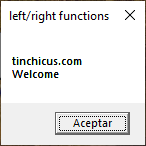
We obtain the same result that mid function but with its particular behaviour. Let’s pass to the next function.
len
This function returns the size of a string or in a better way the quantity of characters in a string. Let’s watch its syntax:
len(string)We can pass as argument a literal text or a variable and it’ll return an integer value that represent the quantity of characters. Let’s watch an example:
dim text, length

text = "Welcome to tinchicus.com"
length = len(text)
text = "text has " & length & " characters"

msgbox text,,"len function"As on preceding examples we declare two variables at the beginning. Next wwwe assign a string to text, and the another variable is used to store the result returned by len function. With this value obtained, we replace value in text with a string and the value in length. Finally, we show the new value in text. Let’s watch its output:

This value can be very useful to use with other functions but we’ll watch it a few later. Let’s pass to the next function.
InStr
This function search content in a string, it can be a word, a character, or just text, and returns the first position where it matches. Let’s watch its syntax:
InStr([start,] string_text, search_text[, case_sensitive])string_text and search_text are mandatories, the first is the string where we search and the second is the content to search. start and case_sensistive are optionals. The first is to indicate from what position starts, the second is a boolean to indicates that ignore case sensitive or not. If we use the second option, we must indicate the begin position. Let’s watch an example to understand how it works:
dim text, pos

text = "Welcome to tinchicus.com"
pos = instr(text, "Tin")
if pos = 0 then
	msgbox "Not found",,"InStr function"
else
	msgbox "Found",,"InStr function"
end ifWe assign a string to text, in pos we store the result of InStr function. For this case, we pass the preceding variable and a text to search. On the conditional, we evaluate whether pos is equal to zero. If we accomplished this condition, we show a message indicating that was not found. Otherwise, we show a message indicating that was found. Let’s watch its output:
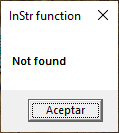
In this case, show that was not found because Tin isn’t in the string. Let’s modify the preceding code in the following way:
dim text, pos

text = "Welcome to tinchicus.com"
pos = instr(1,text, "Tin", 1)
if pos = 0 then
	msgbox "Not found",,"InStr function"
else
	msgbox "Found",,"InStr function"
end ifWe only change the call to InStr. We pass the starting position and the case sensitive option. Now, this function will ignore the case sensitive in the search. Let’s execute again and watch its output:
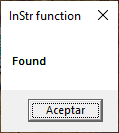
Now, it was found because check the letter and ignore the case of each one. Let’s pass to the next function.
Split
This splits a string into a string array with the use of a splitter element. Let’s watch its syntax:
split(string, splitter)The first argument is the string to split, and the second argument is used to split it. To understand how it works, let’s watch the following example:
dim arr, list, text, a

text = "Welcometo tinchicus.com"
arr = split(text,chr(32))
for a = 0 to ubound(arr)
	list = list & arr(a) & ","
next

msgbox list,,"Split function"We declare four variables to use in the code. We assign a string to text. Next is use split function to the preceding variable and as splitter use blank space. The following is a loop that pass in all elements generated and we concatenate to previous values in list. Finally, we show the final value in list. Let’s watch its output:
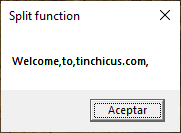
Watch the we’ve a comma at the end of string, to fix this we’ll use two functions that talk earlier. Let’s change the preceding code on the following way:
dim arr, list, text, a

text = "Welcome to tinchicus.com"
arr = split(text,chr(32))
for a = 0 to ubound(arr)
	list = list & arr(a) & ","
next
list = mid(list,1,len(list)-1)

msgbox list,,"Split function"It’s the same code but we add a line where list is modified with mid and to fix it we use len with the variable minus one. Let’s run again this code and watch its output:
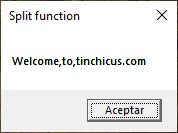
Now, we remove the extra comma. This is a way of using some functions in the same code. Let’s pass to the next function.
Join
This function is the opposite to split because take an string array and joined in text string with joiner element. Let’s watch its syntax:
Join(array, joiner)It’s similar to preceding function, where the first argument is the array and the second argument is the element that joins all elements. Let’s watch the following example:
dim arr, list, text

text = "Welcome to tinchicus.com"
arr = split(text,chr(32))
list = join(arr, "->")

msgbox list,,"Join function"We store a string in a variable. Then we store the result of split function with text, for separate we use blank space. With our array generated, we use join to rejoined but with an arrow. Finally, we show the new variable generated. Let’s watch its output:
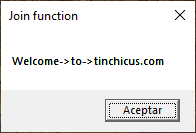
As we can watch, it can be very useful but more practical is the next function.
Replace
This function replaces a character or text with another in a string. Let’s watch its syntax:
Replace(string, search_text, replace_text[, start, quantity, case_sensitive])The first argument is the string that we work. The second argument is the text to search, it can be a character, and the third argument is the text to replace searched text. Optionally, we can pass from where we must begin (start), how many replaces we can do (quantity), and finally whether must be case sensitive or not. Let’s watch an example:
dim list, text

text = "Welcome to tinchicus.com"
list = replace(text," ","->")

msgbox list,,"Replace function"We’ve a variable with a string then we use replace with this variable. In this string we search blank spaces and we replace it with an arrow, just like the example for join but with less lines. Let’s watch its output:

We’ve the same result that in the join code. Let’s take the preceding code and modify in the following way:
dim list, text

text = "Welcome to tinchicus.com"
list = replace(text,"o","*",1,2)

msgbox list,,"Replace function"Now, we’ll replace the letter o with asterisk but only twice and we must specify the starting position. Let’s run again this code and watch its output:

With this new output we can watch how flexible is this function. Let’s pass to the last function.
Filter
This function allows to filter information on a string. But in this case, not in a text string but in a string array. Let’s watch its syntax:
filter(array, filter_text[, include, case_sensitive])The two first arguments are mandatories but the others are optional.The first argument is the array that we’ll work. The second argument is the element to filter. include is a boolean value and it’s used to take only the elements that marches with the filter or take the elements that doesn’t match. case_sensitive is used to ignore or not the lettercase. Let’s watch the following example:
dim i, list, arr, text, validate, novalidate

list = "tinchicus@gmail.com,a.b.com,mrbogusa@gmail.com, price@amazon.com,tinchicus.com,a@b.com"
arr = split(list,",")
validate = filter(arr,"@")
novalidate = filter(arr,"@", false)
for a = 0 to ubound(validate)
	i = i + 1
next
text = "Validate: " & i & vbCrLf
i = 0
for a = 0 to ubound(novalidate)
	i = i + 1
next
text = text & "No Validate: " & i & vbCrLf

msgbox text,,"Filter function"We begin declaring all variables that we’ll use in the code. We assign a string to list. In this case, a list of valids and no valid emails. We apply split to this string and create an array. Next, we use the filter twice. In validate, we store the result returned from the filter that include the results with at sign. In the other hand, novalidate store the result returned from the filter that not include the results with at sign. The first loop counts how many valid emails there are. The result is stored in text with a label indicating this. The second loop does the same but with no valid emails. We concatonate the new value to the previous value in text. Finally, we show the final value in text. Let’s watch its output:

This can be a very useful tool when we work with string and data taken from a database, in example.
In summary, today we talked about different functions to manipulate strings, from some simples to extract segmment from a string, how many characters has a string, convert a string to array, an array to string, replace text in a string and filter some information. I hope you’ve found it useful. You can follow me on this social networks:


Donation
It’s for maintenance of the site, thanks!
$1.50


 El blog de Tinchicus