
Tambien hay una version en castellano de este post, click aca.
Welcome to this post, today we’ll talk about how to formatting information.
We’ve various functions to format information in many different ways and fields. Let’s start with the first one.
FormatCurrency
This function formats an expression with the currency locale. Let’s watch its syntax:
formatcurrency(expression[, decimals, zero_left, negative_parenthesis, group_digits])The unique mandatory value is expression, the rests are optionals. expression is the value to format, let’s describe what do the other options:
- decimals, establishes the amount of digits after decimal indicator
- zero_left, boolean to show or not the zeroes to left
- negative_parenthesis, boolean to show negative values with minus sign or parenthesis
- group_digits, boolean to allow or not aggroupate digits with locale delimitations.
Let’s watch the following example to understand how it works:
dim value, final

value = -180000.3350000
final = formatcurrency(value, 3, false, true, true) & vbCrLf
final = final & formatcurrency(value, 2, false, false, false)

msgbox final,,"FormatCurrency"We declare two variables. In the code, we assign a negative number to the first variable. Then, we assign the result of the function to the second variable. For this case, we use the preceding variable, we assign three decimals, not show the zeroes on the left, show negative numbers with parenthesis and aggroup digits with locale. We make a new call to function but this time change the decimals, not showing the parenthesis and not aggroupate digits. The result is concatenated with the previous value and finally we show the final value. Let’s watch its output:

We can watch the different ways that can be formatted in easy way for locale currency. Let’s pass to the next function.
FormatNumber
This has the same rules that formatcurrency for the expression but doesn’t add the monetary sign. Let’s watch its syntax:
formatnumber(expression[, decimals, zero_left, negative_parenthesis, group_digits])As formatcurrency its unique mandatory value is expression, the rests are optionals. expression is the value to format, let’s describe what do the other options:
- decimals, establishes the amount of digits after decimal indicator
- zero_left, boolean to show or not the zeroes to left
- negative_parenthesis, boolean to show negative values with minus sign or parenthesis
- group_digits, boolean to allow or not aggroupate digits with locale delimitations.
Let’s watch the following example to understand how it works:
dim value, final

value = -180000.3350000
final = formatnumber(value, 3, false, true, true) & vbCrLf
final = final & formatnumber(value, 2, false, false, false)

msgbox final,,"FormatNumber"We declare two variables. In the code, we assign a negative number to the first variable. Then, we assign the result of the function to the second variable. For this case, we use the preceding variable, we assign three decimals, not show the zeroes on the left, show negative numbers with parenthesis and aggroup digits with locale. We make a new call to function but this time change the decimals, not showing the parenthesis and not aggroupate digits. The result is concatenated with the previous value and finally we show the final value. Let’s watch its output:
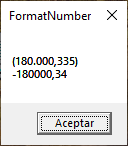
We can watch the different ways that can be formatted in easy way for numbers. Let’s pass to the next function.
FormatPercent
This function has the same rules to format that preceding functions but thinked for percent numbers. Let’s watch its syntax:
formatpercent(expression[, decimals, zero_left, negative_parenthesis, group_digits])As formatcurrency or formatnumber its unique mandatory value is expression, the rests are optionals. expression is the value to format, let’s describe what do the other options:
- decimals, establishes the amount of digits after decimal indicator
- zero_left, boolean to show or not the zeroes to left
- negative_parenthesis, boolean to show negative values with minus sign or parenthesis
- group_digits, boolean to allow or not aggroupate digits with locale delimitations.
Let’s watch the following example to understand how it works:
dim value, final

value = 0.1245123
final = formatpercent(value, 3, false, true, true)

msgbox final,,"FormatPercent"First is the declaration of the two variables, this isn’t necessary but it’s a good practice, then we take the first variable and assign a number. The second variable will receive the result of the function with preceding variable and some options. We establish three decimals, show negative numbers with parenthesis and aggroup digits with locale. Finally, we show the value in final. Let’s watch its output:

As you can watch it converts the number to a percent. Let’s pass to the next function.
FormatDateTime
This function allows us to format in a right way a string with some data that can be converted to a date. Let’s watch first its syntax:
formatedatetime(expression[, formato])We use expression to pass a date or time to format it and it’s mandatory. The second argument is optional and used to establish the type of format. The following table show us the format options available:
| Value | Constant | Description |
| 0 | vbGeneralDate | Default and normal value |
| 1 | vbLongDate | Returns the complete date |
| 2 | vbShortDate | Returns a short date |
| 3 | vbLongTime | Returns an hour with all fields |
| 4 | vbShortTime | Returns a 24 hs. format (HH:mm) |
In the function, we can pass the value or the constant to format the expression. But if we don’t pass an option, the first value is used by the function. Let’s watch an example:
dim date, time, final

date = "22/oct/2025"
time = "22:30"
final = formatdatetime(date, vbLongDate) & vbCrLf
final = final & formatdatetime(time, vbShortTime) & vbCrLf
date = #03/06/2025#
final = final & formatdatetime(date, vbShortDate)

msgbox final,,"FormatDateTime"As all the post, we start declaring three variables and as we mention in other opportunities this isn’t necessary but it’s a good practice. Next we assign two values to the first two variables. The next step is use the function with the first variable, apply the complete format (vbLongDate) and store the result in final. After this we repeat the call to the function but with the second variable, apply the time short format (vbShortTime) and concatenate the result to the previous value in final. Then, we assign a new value to date but look at the format. This is a valid way to pass a value of date or time to a variable. We repeat the first formatting but with short format to the new value and the result concatenated to the previous values in final. Finally, we show the value in final. Let’s watch its output:
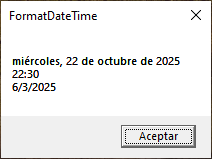
Until now, we watched how to format some types of data. The next functions are useful to format context in a text or content in a window.
string
This function repeats a character by the number that we need. Let’s watch its syntax:
string(length, character)It’s so simple as above. Let’s watch a simple example:
dim text

text = string(10,"#") & "tinchicus.com" & string(10,"#")

msgbox text,,"string"In the declarated variable, we assign a text surrounded by two calls to the function. In both cases, we pass a number of repetitions and hash sign as character. Finally, we show the value stored in text. Let’s watch its output:

As you can watch at the above picture, this function can be useful to add some makeup to our strings. Let’s pass to the next function.
space
This function is very similar to the preceding but only repeats blank spaces. Let’s watch its syntax:
space(length)We only need to pass the number of repetitions. Let’s watch an example:
dim text

text = "#" & space(10) & "tinchicus.com" & space(10) & "#"

msgbox text,,"space"In this case, we store in a variable a text surrounded by two calls to the function but with a hash sign at the beginning and the end. These are used to show the spaces between the text and spaces generated. In both cases, we generate ten blank spaces. Finally, we show the value in text. Let’s watch its output:

It can be very useful whether need to use custom tabulations for our text. Let’s pass to the last function.
trim
This function removes the blank space at the beginning and end in a text but not what are inside. Let’s watch its syntax:
trim(string)We just pass the string to analyze and the function returns the final result. Let’s watch an example:
dim text, final

text = space(10) & "tinchicus.com" & space(10)
final = chr(34) & text & chr(34) &vbCrLf
final = final & chr(34) & trim(text) & chr(34)

msgbox final,,"trim"We assign a value to the first variable. At the beginning and the end we use the function space to generate ten blank spaces round the literal string. On the next line, we use the first variable to assign at the anothher variable but we concatenate double quotes, ASCII character 34, for a better visualization of spaces. Then we repeat the same action but now apply the function to the first variable and concatenate with previous values. Finally, we show the value in final. Let’s watch its output:

There are two variants of this function called ltrim and rtrim. ltrim eliminates the blank spaces at the beginning and rtrim eliminates the blank spaces at the end. That’s the only difference with trim, the rest is the same to trim. This function can be very useful to clean blank spaces that can disturb other string functions.
In summary, today we have seen different functions to formatting an expression, formatcurrency for locaale currency, formatnumber for locale numbers, formatpercent for numbers to percent, formatdatetime for locale date and time, string to repeat a character, space to repeat blank spaces and trim to remove blank spaces at the beginning and the end. I hope you’ve found it useful. You can follow me on this social networks:


Donation
It’s for maintenance of the site, thanks!
$1.50


 El blog de Tinchicus